
Selling the domain is only half the job. The deal is not done until payment is safe, the transfer goes through, and the buyer shows as the new owner.
If I wanted the short version, I’d keep it this simple:
- I wait for cleared payment before I share anything
- I check the 60-day transfer lock and WHOIS details first
- I choose the handoff method:
- Registrar push for the same registrar
- Auth/EPP code transfer for a different registrar
- Marketplace or escrow flow if the platform controls the steps
- I leave nameservers alone during transfer if the site or email is live
- I confirm the buyer now controls the domain in the registrar account and WHOIS
- I remove the sold name from all listings and log the sale details
Here’s the part many sellers miss: a cross-registrar transfer often takes 5: 7 days, and ICANN rules can block a move for 60 days after registration, transfer, or some contact changes. That delay can wreck a sale if I promise a date too early.
A clean handoff comes down to four checks: payment, eligibility, transfer path, and final proof of ownership change. That’s the whole process in plain English.
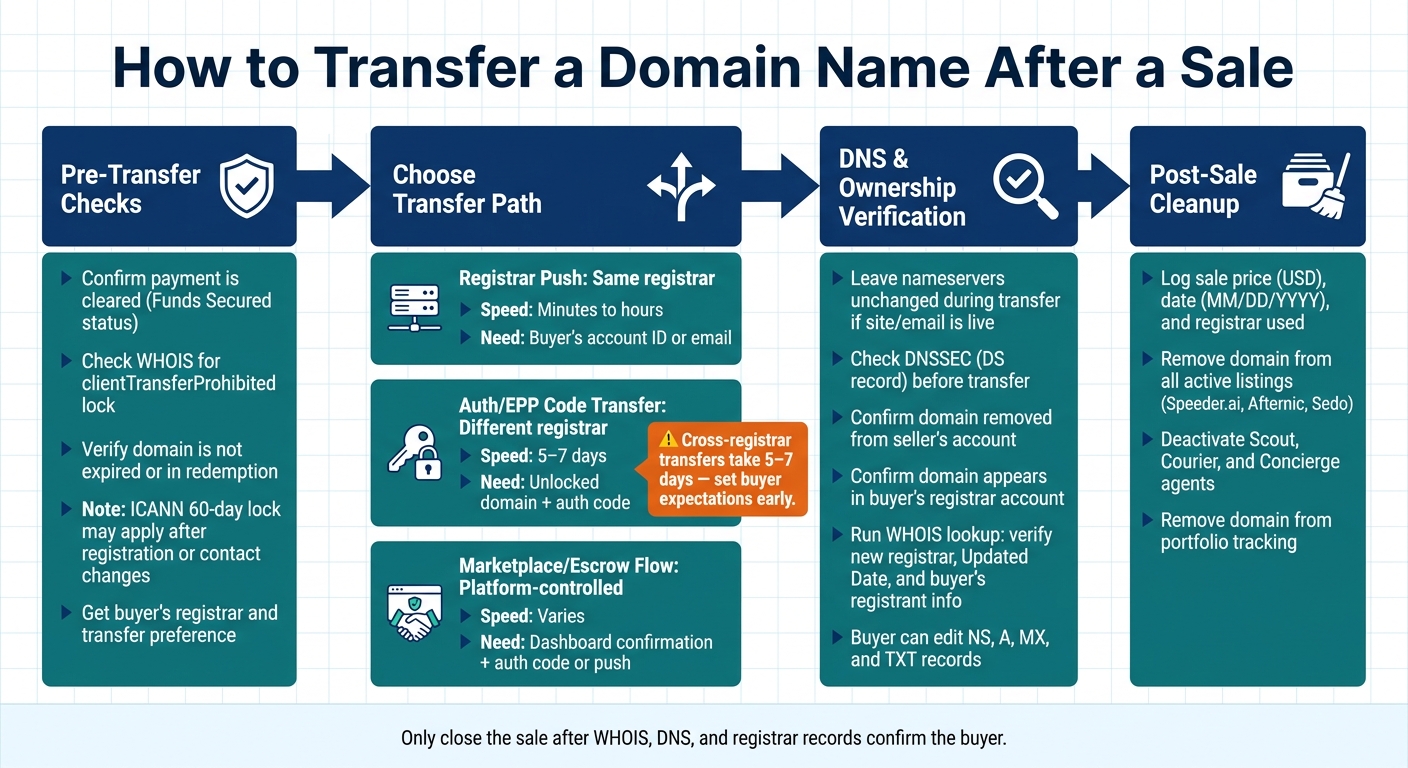
Domain Transfer Process: Step-by-Step Guide After a Sale
Pre-Transfer Checklist Before You Touch the Domain
Before you unlock anything, make sure three basics are covered: payment, transfer eligibility, and the buyer's setup.
Confirm Payment Is Secured
Don't unlock the domain until payment is final. The way you confirm that depends on how the sale is being handled.
For direct sales, wait until the money is in your account. For marketplace or escrow-backed deals, check the transaction dashboard for a clear "Funds Secured" status before you move forward.
If it's a direct deal, the payment check is on you. That means no unlocking the domain and no generating the auth/EPP code until you've verified the payment.
Check Transfer Eligibility and Contact Data
Next, check WHOIS for the domain's lock status and make sure you can access the admin email.
The domain needs to be unlocked and eligible to transfer. If you see clientTransferProhibited, that's the registrar lock, and it has to be removed before the transfer can happen. Also check that the domain isn't expired or in a redemption period. Either one will stop the transfer until the name is renewed or restored.
Timing matters too. ICANN's 60-day lock can apply after a new registration or after certain registrant contact changes, like updates to the name, organization, or email. If one of those changes happened not long ago, the domain may not be able to move to another registrar yet. Check the registration date and review any recent account changes.
If your registrar needs the admin email to be visible for transfer approval, turn off WHOIS privacy first.
Get the Buyer's Registrar and Transfer Preference
Before you change locks or generate a code, ask the buyer two things:
- Which registrar they use
- How they want to receive the domain
That answer tells you which path to take. If the buyer already has an account at the same registrar, an internal push is often faster and simpler. In that case, you usually don't need an auth/EPP code - just the buyer's account email or account ID. If the buyer uses a different registrar, you'll need to unlock the domain and generate an auth/EPP code.
For marketplace-backed deals, save the transaction reference number from the dashboard and follow the official process tied to that reference.
With payment secured and the buyer's registrar confirmed, you can pick the transfer path.
Choose the Right Transfer Path and Complete It
Use the buyer's registrar and the sale workflow to choose one of three transfer paths. Then follow the matching path below to hand off the domain without a mess.
| Transfer Path | Speed | What You Need | Best For |
|---|---|---|---|
| Registrar push | Minutes to hours | Buyer's account ID or email | Same-registrar transactions |
| Auth/EPP code transfer | 5: 7 days | Unlocked domain + auth code | Buyer at a different registrar |
| Marketplace/escrow flow | Varies by platform | Dashboard confirmation + auth code or push | Secured payments and escrow |
Path 1: Push the Domain Within the Same Registrar
If the buyer uses your registrar, start with the push option. Log in to your registrar dashboard, find the domain, and choose the account push setting. Enter the buyer's account email or account ID, based on what the registrar asks for.
After the buyer accepts the domain on their side, check both ends. The domain should no longer appear in your account and should show up in the buyer's account.
Path 2: Transfer to a Different Registrar Using the Auth/EPP Code
If the buyer wants the domain at a different registrar, this is the standard cross-registrar handoff. In your registrar dashboard, remove the clientTransferProhibited lock. Then request the auth/EPP code.
Next, the buyer starts the transfer with their registrar, enters the code, and pays any transfer-in fee. This path usually takes 5: 7 days, so don't expect it to wrap up right away.
Path 3: Follow the Marketplace or Escrow Workflow
If the sale happened through a marketplace or escrow service, stick to the dashboard workflow and complete the transfer exactly as assigned. That part matters. The platform controls the transfer sequence, and your job is to follow each step in order.
Track each step in the dashboard as you go. Payout is released only after ownership is confirmed, so keep everything inside the platform workflow.
After the transfer is submitted, verify DNS and ownership before you close the sale.
Avoid DNS Problems and Confirm the Buyer Now Owns the Domain
Once the transfer path is done, you still need two last checks: DNS stability and proof that ownership changed. This is the final checkpoint after a push, auth-code transfer, or marketplace-assisted handoff.
Handle Nameservers and DNS Without Breaking a Live Site
If the domain still runs a live site or mailbox, plan the cutover before you touch nameservers. Change them too soon, and the site or email can go down. The safest move is simple: leave nameservers as they are during the transfer. The buyer can update DNS after the domain is in the right account and hosting is ready.
Also, check DNSSEC before the transfer. If a DS record exists, DNSSEC is turned on. Verify that with a DNS lookup tool, and make sure the NS and SOA records are correct so you don't run into resolution errors before the transfer finishes.
Confirm Ownership Has Fully Changed
After DNS looks stable, confirm that the registrar and WHOIS now reflect the buyer. Once the transfer is complete, the domain should no longer appear in your registrar account, and it should show up in the buyer's registrar account. The buyer should also be able to edit NS, A, MX, and TXT records.
Next, run an independent WHOIS lookup. It should show the new registrar, a new Updated Date, and the buyer's registrant details or a privacy service. If the sale went through a marketplace or escrow flow, check that the transaction is marked completed and that the domain shows as delivered or the funds show as released before you treat the deal as closed.
| Verification Item | Seller Confirms | Buyer Confirms |
|---|---|---|
| Registrar account | Domain no longer listed in the seller's account | Domain listed in the buyer's registrar account |
| WHOIS data | Seller's registrant info is gone | Buyer's details or privacy service is shown |
| DNS access | Nameservers match the buyer's request | Can edit NS, A, MX, and TXT records |
| Marketplace/escrow | Status shows "Funds Released" | Status shows "Domain Delivered" or "Completed" |
Conclusion: Post-Sale Checklist for a Clean Close
Once the ownership checks are done, it’s time for cleanup. Record the sale price in USD, the completion date in MM/DD/YYYY format, and the registrar used for the transfer.
Then remove the sold domain from every live listing, including Speeder.ai, Afternic, and Sedo. That step helps you avoid duplicate offers and any confusion after the deal is done. If Speeder.ai agents were active on the domain, turn off Scout, Courier, and Concierge right away.
Use this checklist to wrap up the sale:
| Post-Sale Task | What to Do | Where |
|---|---|---|
| Internal record | Log the sale price (USD), date (MM/DD/YYYY), and registrar name | Spreadsheet or accounting tool |
| Listing removal | Delete the domain from all active marketplaces | Speeder.ai, Afternic, Sedo |
| Outreach shutdown | Deactivate Scout, Courier, and Concierge agents | Speeder.ai dashboard |
| Portfolio cleanup | Remove the domain from portfolio tracking to stop monthly fees and keep records accurate | Speeder.ai dashboard |
Only close the sale after WHOIS, DNS, and registrar records show the buyer.
FAQs
What if the domain is under a 60-day lock?
If a domain is under a 60-day lock, it can’t be moved to another registrar until that lock ends. This ICANN-required rule usually kicks in after a new registration or an earlier ownership change.
That means you’ll need to wait before you can get the auth/EPP code for an external transfer. Be clear with the buyer about the timing, because this transfer can’t be skipped or moved along faster.
Can I transfer a domain before payment clears?
No. Never transfer a domain before payment clears.
If you transfer it before you have verified funds, you’re taking on needless risk. The buyer could reverse the payment, file a chargeback, or simply fail to pay.
Wait until the payment is fully processed and secured before you unlock the domain or send the authorization code.
What should I do if the website or email is still live?
If the website or email is still live, make sure all related email accounts, forwarding rules, and mailing lists are moved over or shut down before the final transfer.
An ownership change can cut off access right away. So before you hand things over, confirm the buyer has moved any data they need or set up new hosting. That helps avoid downtime, lowers security risk, and makes the handoff cleaner.